2026 · Novus Stream Solutions (hub)About 13 min readNovus Stream Solutions
Lossy vs lossless compression: what each is for
Every image, audio, and video file you save is compressed one of two ways: lossy, which discards data for much smaller files, or lossless, which keeps every bit. Choosing the wrong one means a blurry photo or a bloated archive. Here is what each is actually for.
Contents
- 1.Overview
- 2.What lossy compression actually does
- 3.What lossless compression actually does
- 4.The generation-loss trap
- 5.Which common formats are which
- 6.A simple rule for choosing
- 7.Quality settings: the dial most people ignore
- 8.Why file size matters beyond storage
- 9.Transparency and the compression choice
- 10.Compressing video and audio: the same idea, bigger stakes
- 11.Compression in a real workflow
Overview
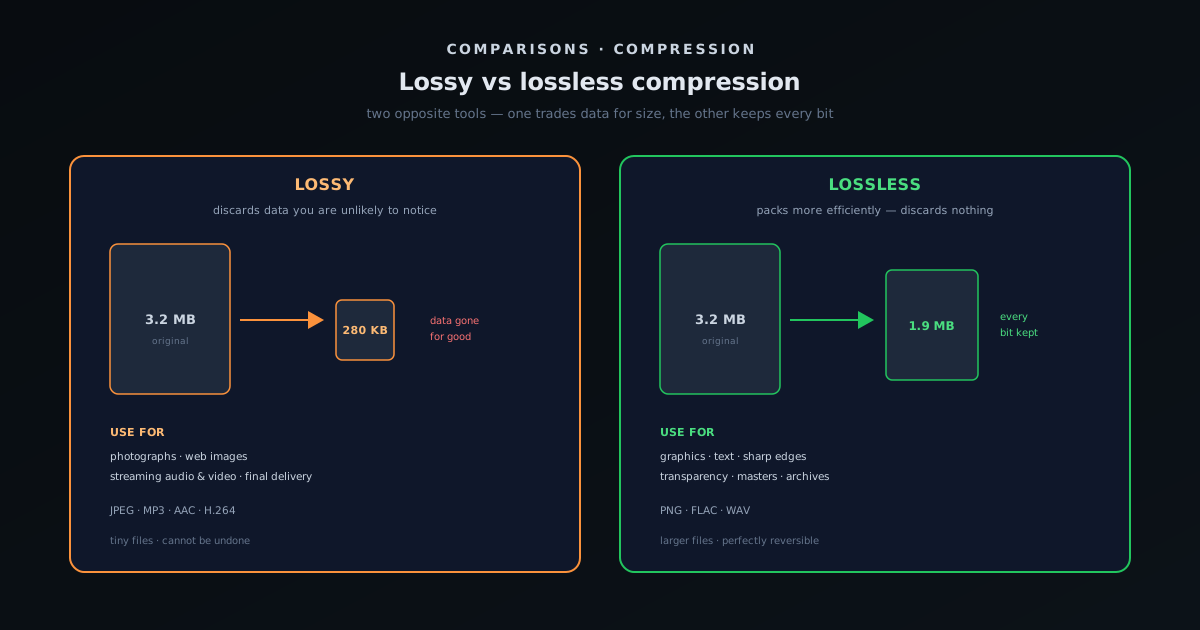
Every digital file you save — a photo, a song, a video, a document — is stored using compression, because raw, uncompressed media is enormous and impractical to keep or send. There are two fundamentally different ways to compress, and the difference between them is one of the most useful things to understand about working with media: lossy compression makes files dramatically smaller by permanently throwing some data away, while lossless compression makes files smaller without discarding anything, so the original can be reconstructed bit-for-bit. Neither is better in the abstract; they are tools for different jobs, and the entire skill is knowing which job you are doing. Choose wrong and you get a blurry, artifact-ridden photo where you needed fidelity, or a needlessly gigantic file where a small one would have been perfect.
The confusion that surrounds this topic comes mostly from treating "compression" as one thing, when the two kinds behave so differently that they are almost opposites in intent. Lossy compression bets that you will not notice what it removes, and when the bet is right — as it usually is for photographs and music — it delivers files a fraction of the size with quality the eye or ear accepts as identical. Lossless compression makes no such bet; it guarantees the data comes back exactly, which is essential when every bit matters and fatal to nothing except file size. This guide explains what each actually does, the crucial trap of compounding loss, which common formats fall into which camp, and a simple rule for choosing — so that "which format should I save this as?" stops being a guess.
What lossy compression actually does
Lossy compression shrinks a file by analyzing its content and permanently discarding the parts a human is least likely to perceive. In a photograph, that means subtle color and detail variations the eye barely registers; in audio, it means frequencies and quiet sounds masked by louder ones; in video, it means redundancy between frames and within them. The result is astonishing efficiency: a lossy file can be a small fraction of the original size while looking or sounding, to most people in most conditions, the same. This is why the photos on virtually every website, the music in every streaming service, and the video on every platform are lossy — at that scale, the size savings are not a nicety, they are what makes the whole thing possible to deliver.
The catch is that the discarded data is gone for good. A lossy file cannot be turned back into the original; the information was thrown away, not hidden, so what you have is a permanent approximation. For most delivery purposes this is exactly the right trade — nobody needs a bit-perfect copy of a product photo on a web page — but it has a consequence that bites people who do not expect it: quality only ever degrades, never recovers, and pushing the compression too hard introduces visible artifacts (blocky patches, color banding, a smeary halo around edges) that no later processing can remove. Lossy is a one-way door, which is fine when you are walking through it deliberately and a problem when you do not realize you are.
What lossless compression actually does
Lossless compression also makes files smaller, but it does so by finding and encoding patterns and redundancy more efficiently, without throwing any information away — so the original can be perfectly reconstructed, every bit identical. The way to picture it is like packing a suitcase neatly versus loosely: the contents are exactly the same, they just take less space. Because nothing is discarded, a lossless file has no artifacts and no generation loss, and it can be opened, edited, and re-saved any number of times without ever degrading. This is what makes lossless the right choice whenever fidelity is non-negotiable: the master copy of a recording, an image with crisp text or sharp edges, a screenshot, a logo, or anything you will edit repeatedly.
The price of that guarantee is size. Lossless files are far larger than lossy ones for the same content — often several times larger for a photograph — because the only savings available are from genuine redundancy, not from discarding perceptible-but-acceptable detail. For content with lots of flat areas and repetition, like graphics, screenshots, and line art, lossless compresses well and the size penalty is modest. For content with continuous, noisy detail, like a photograph of foliage, lossless can barely shrink it at all, which is precisely where lossy shines. So lossless is not "the better, safe choice" to default to everywhere; it is the correct choice when fidelity matters, and the wrong, wasteful choice when it does not and the file is photographic.
The generation-loss trap
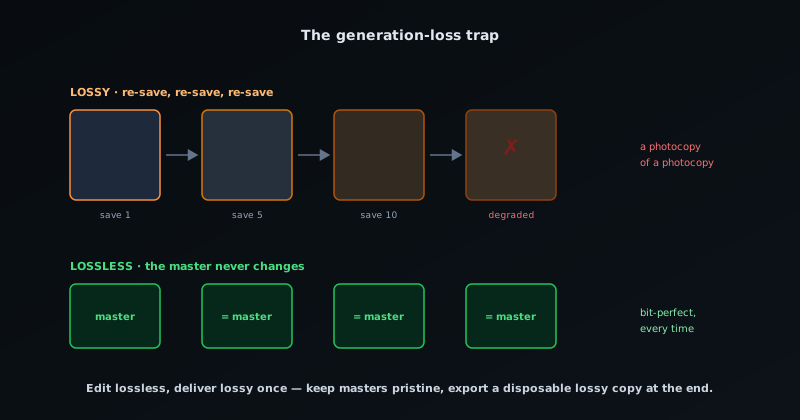
The single most important practical consequence of the lossy/lossless distinction is what happens when you save a file more than once, and it is the thing that catches the most people. Because lossy compression discards data every time it runs, repeatedly editing and re-saving a lossy file compounds the loss: each save throws away a little more, and the degradation accumulates like a photocopy of a photocopy of a photocopy. A JPEG opened, lightly edited, and re-saved as a JPEG a dozen times will visibly deteriorate even though no single save looked destructive, because the losses stack. This is generation loss, and it quietly ruins images and audio that were edited carelessly over time.
The defense is a simple workflow rule: keep your working and master copies lossless, and only go lossy once, at the end, for delivery. Edit in a lossless format (or the editor's native format) so that every save is bit-perfect, and export a lossy copy as the final step for the web, for sharing, or for streaming — treating that lossy export as a disposable end product, not something you edit further. If you need to make changes, you go back to the lossless master and export a fresh lossy copy, rather than editing the lossy one. Following this one rule prevents the slow, invisible decay that otherwise afflicts anything saved lossily and touched repeatedly, and it is the practical reason the distinction is worth understanding at all.
Which common formats are which
Knowing which everyday formats are lossy and which are lossless turns the theory into decisions. On the image side, JPEG is lossy and the workhorse for photographs; PNG is lossless and the right choice for graphics, screenshots, logos, and anything with transparency or crisp edges; GIF is lossless in its color data but limited to 256 colors; and the modern formats WebP and AVIF are flexible, offering both lossy and lossless modes so you choose per image. That flexibility is why the modern formats are worth learning, and why the ecosystem compares them directly in PNG vs WebP vs AVIF for transparency: which should you export? and frames the most common everyday choice in JPG vs PNG: when to use which.
In audio, MP3, AAC, and Ogg Vorbis are lossy and dominate delivery, while FLAC, ALAC, and WAV are lossless and used for masters, archives, and audiophile listening. In video, essentially everything you stream — H.264, H.265, VP9, AV1 — is lossy, because uncompressed video is impractically huge; lossless video exists but is reserved for production intermediates. The pattern across all media is consistent: lossy formats own delivery and distribution because size is what matters there, and lossless formats own creation, editing, and archiving because fidelity is what matters there. Recognizing which camp a format belongs to tells you, immediately, what it is designed for and whether it fits your job.
A simple rule for choosing
All of this collapses into a rule that covers the large majority of real decisions: use lossy for photographs and for final delivery where small size matters, and use lossless for graphics, for anything with sharp edges or text, and for masters and archives you will edit or keep. If the content is a continuous-tone photo headed for the web, lossy (a JPEG, or a lossy WebP/AVIF) gives you the size you need with quality the viewer accepts. If the content is a logo, a screenshot, an illustration, a transparent image, or the master you will keep editing, lossless (a PNG, or a lossless mode) preserves the crispness and the data. When in doubt about a photo for delivery, lossy; when in doubt about a graphic or a master, lossless.
The few cases that need more thought are the edges of that rule, and they resolve cleanly once you name what you are optimizing for. A photograph you will edit further is a master, so keep it lossless until the final export, despite being a photo. A graphic going onto a performance-critical web page might justify a lossy mode if its size is genuinely a problem and the artifacts are invisible, despite being a graphic. The principle underneath every case is the same: decide whether this particular file's job is fidelity or size, and pick the compression that serves that job. Once you frame each file that way — what is this for, fidelity or size? — the choice between lossy and lossless stops being a technical puzzle and becomes an obvious answer to a question you have already asked.
Quality settings: the dial most people ignore
Lossy formats almost always expose a quality setting — a slider or a number — and it is the single most consequential control most people leave on a default they never think about. Pushing it toward maximum throws away little but barely shrinks the file; pushing it toward minimum produces a tiny file riddled with visible artifacts. The useful territory is the middle, where the file gets dramatically smaller while the loss stays invisible to the eye, and finding that sweet spot for a given image is most of the skill in using lossy compression well.
The sweet spot is not a fixed number, because it depends on the image: a flat graphic with sharp edges shows lossy artifacts early and wants a high setting or a lossless format, while a busy photograph hides aggressive compression and tolerates a much lower one. The practical method is to step the quality down until you can just start to see degradation, then back off one notch — that is the smallest file that still looks clean. A target-size mode, where you specify the kilobytes you want and let the tool search for the matching quality, automates exactly this hunt when you have a hard budget to hit — which is what bgremover.novusstreamsolutions.com/tools/image-compressor does for free in the browser.
Why file size matters beyond storage
It is tempting to think compression only matters when storage is tight, but on the web the more important cost of a large file is time: every uncompressed image is bytes a visitor has to download before they see the page, and those bytes are slowest to arrive for exactly the people on the worst connections. A page heavy with poorly-compressed images feels sluggish, costs mobile users their data, and is penalised in the page-speed metrics search engines score, the broader version of which is covered in Page speed and Core Web Vitals for a small site.
This reframes compression from housekeeping to a user-experience and reach decision. Shaving an image from a megabyte to a hundred kilobytes with no visible loss is not pedantry; it is the difference between a page that loads instantly and one that makes people wait, multiplied across every image and every visitor. The right compression choice is one of the cheapest performance wins available, because it improves the experience for everyone without changing anything they can see — which is the whole point of choosing the smallest file that still looks right.
Transparency and the compression choice
A wrinkle that trips people up is transparency, because the need for an alpha channel interacts with the lossy-versus-lossless decision. The old default for transparency was a lossless format, which is why so many transparent images are needlessly heavy — a transparent cutout saved losslessly can be many times larger than it needs to be. Modern formats support transparency with lossy compression, so a transparent image no longer has to be huge to keep its clean edges, which matters a great deal for product cutouts and logos that appear all over a site.
The practical guidance is to separate the two questions: does this image need transparency, and does it need lossless fidelity? They are independent. A transparent photograph can often be lossy and small; a flat transparent logo with crisp edges may want lossless to avoid fringing, but in a vector format rather than a heavy raster one. Conflating transparency with lossless is how sites end up shipping enormous transparent images out of habit, when a modern lossy-with-alpha format or a vector would be a fraction of the size for the same result.
Compressing video and audio: the same idea, bigger stakes
The lossy-versus-lossless distinction is not limited to images; it governs audio and video too, where the stakes are larger because the files are so much bigger. Practically all video and most audio you encounter is lossy, because lossless would be impractically huge — an uncompressed video is enormous, and the lossy codecs that shrink it by orders of magnitude are what make streaming and sharing possible at all. The same trade applies: a quality setting balances size against fidelity, and the sweet spot is where the loss stops being noticeable.
The generation-loss trap is worse for video and audio, because re-encoding a lossy file repeatedly — every time you trim, convert, or re-export — compounds the degradation, and with large media that loss can become audible or visible faster than people expect. The discipline is the same as for images: keep a high-quality master, do your editing from it, and export to the lossy delivery format once at the end rather than re-encoding a lossy file over and over. For the media-specific format choices, the ecosystem covers containers in MP4 vs WebM: which to export for a music video, but the underlying compression logic is identical to the image case.
Compression in a real workflow
Putting it together, a sane media workflow uses both kinds of compression in their right places rather than picking a side. You capture and edit in lossless or native formats so your working files never degrade, you keep lossless masters of anything important, and you export lossy delivery copies as the final step, sized for where they are going. A photographer keeps the raw and a lossless edit, then exports JPEGs for the gallery. A designer keeps the source file, then exports a PNG for a logo and a lossy WebP for a hero photo. A musician keeps a WAV or FLAC master, then exports MP3 or AAC for distribution. In every case, lossless protects the source and lossy serves the audience.
Doing this well does not require expensive software; the choices are about format and intent, and free in-browser tools can handle the conversions and the final compression — bgremover.novusstreamsolutions.com/tools/format-converter moves between PNG, JPEG, WebP, and AVIF so you can pick lossy or lossless per file. The ecosystem's practical walkthrough at How to compress an image without losing quality covers hitting a target file size for delivery without visible quality loss, which is the lossy-export step done carefully. The takeaway is that lossy and lossless are not rivals to choose between once and for all; they are two stages of one pipeline — lossless to create and keep, lossy to deliver — and understanding the difference is what lets you keep your originals pristine while still shipping files small enough to load fast and share easily.
Frequently asked questions
Quick answers to common questions about this topic.
What is the difference between lossy and lossless compression?
Lossy compression permanently discards data the human eye or ear is least likely to notice, producing much smaller files that cannot be restored to the original. Lossless compression shrinks files by encoding redundancy more efficiently without discarding anything, so the original is reconstructed bit-for-bit — at the cost of larger files.
When should I use lossy compression?
Use lossy for photographs and for final delivery where small file size matters — web images, streaming audio and video, sharing. Formats like JPEG, MP3, AAC, and H.264 are lossy. The trade is size for a permanent, usually-imperceptible loss of detail.
Why does my JPEG get worse every time I save it?
That is generation loss: lossy compression discards a little data on every save, and the losses compound like a photocopy of a photocopy. Avoid it by editing and keeping a lossless master and only exporting a lossy copy once, at the end, for delivery — never editing the lossy file repeatedly.
Is lossless always the safer choice?
No — it is the right choice when fidelity matters (graphics, text, edges, transparency, masters, archives) and a wasteful one when it does not. For a photograph headed to the web, lossless files are needlessly huge and lossy is correct. Decide per file whether the job is fidelity or size.