NSS Background Remover
Saving your work as .nss-project files (locally, no upload)
Save a composition as a named .nss-project in your browser's own storage — preserving originals, masks, layers, and adjustments — with auto-save every 30 seconds and no upload.
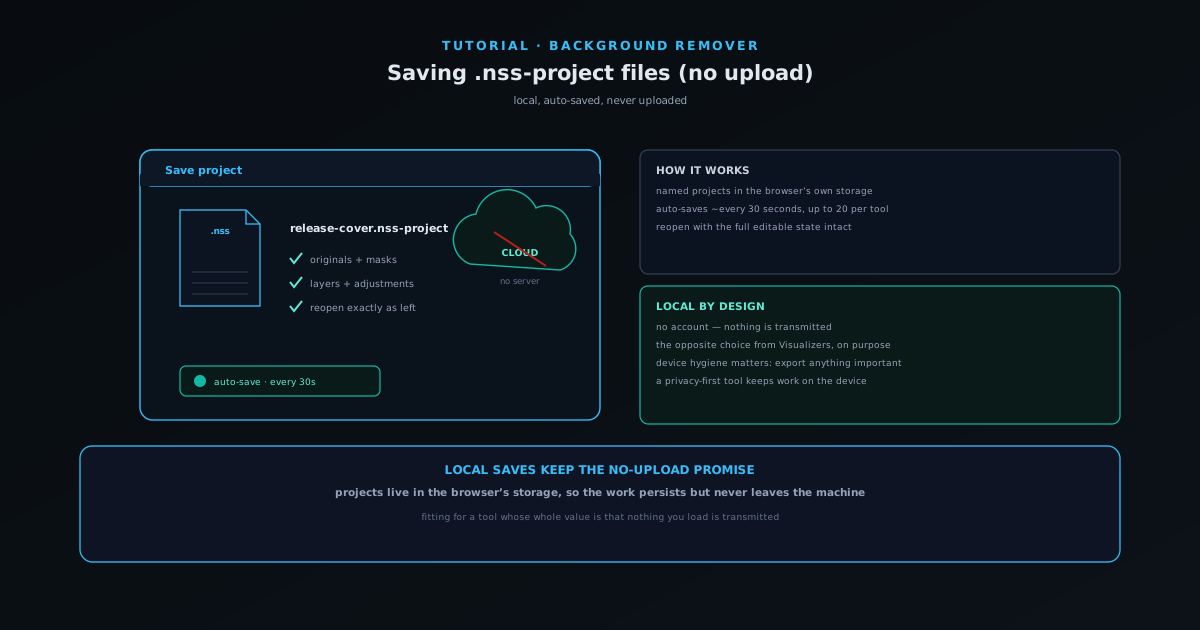
A composition in NSS Background Remover — a cutout with layers, adjustments, and a scene — is worth keeping, and the editor saves it as a named .nss-project file. Crucially, this saving model keeps your projects on your own device rather than in an account, which fits a tool whose entire promise is that nothing you load is ever transmitted.
This tutorial covers how project saves work: what they preserve, how auto-save protects your work, and how the local-first model differs from account-based saving — and why that difference is deliberate.
Contents
- 1
1. Save a named project
Save your current composition as a named .nss-project. The project preserves the originals, masks, layers, and adjustments, so reopening it drops you back into the composition exactly as you left it.
Projects are stored in the browser's own storage (IndexedDB), which means they live on your device and nothing is uploaded.
- Preserves originals, masks, layers, and adjustments.
- Stored locally in the browser, never uploaded.
- 2
2. Let auto-save protect your work
The editor auto-saves roughly every 30 seconds and keeps up to 20 projects per tool, so an accidental closed tab or refresh does not cost you a composition you were in the middle of.
You can rely on auto-save for in-progress work, and use explicit saves to capture named milestones you will return to.
- Auto-save runs about every 30 seconds.
- Up to 20 projects kept per tool.
- 3
3. Reopen and keep working
Reopen a saved project to continue a composition — the layers, masks, and adjustments come back intact, so a change requested later does not mean starting from the original image.
This makes the cutout the beginning of a composition you can return to, rather than a one-shot you have to redo.
- Reopen with the full editable state intact.
- Make later changes without rebuilding from scratch.
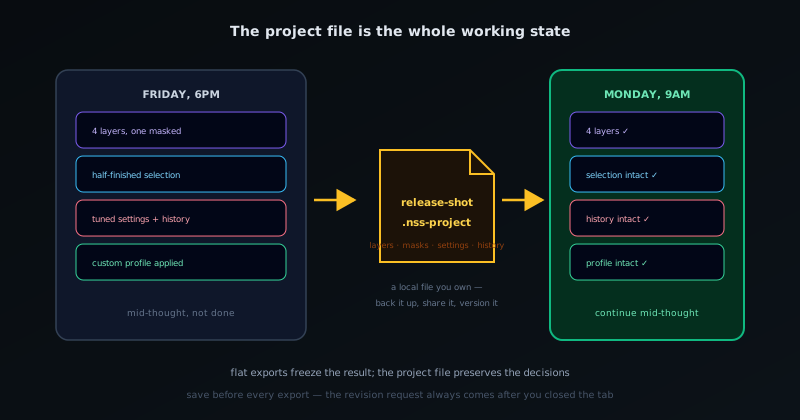
The project file is the whole working state — reopen it and continue mid-thought. - 4
4. Understand why it is local, not an account
Background Remover deliberately has no account: its whole value is that you can cut out a client deliverable, unpublished artwork, or a confidential document without trusting a server. Local .nss-project saves keep that promise — your work persists, but it never leaves your device.
This is the opposite choice from a tool like Novus Visualizers, which adds account-backed saving because its users want to publish and revisit work across devices. Each tool picks the saving model its users actually need.
- No account, by design — nothing is transmitted.
- Local saving fits a privacy-first tool; account saving fits a publish-first one.
Local saves mean device hygiene matters
Because projects live in your browser's storage, they are as durable as that storage — clearing browser data or switching machines means they do not come with you. For anything important, export the finished result, and treat .nss-project files as your working state on this device rather than a cloud backup.
Frequently asked questions
Quick answers to common questions about this topic.
Can I save my editing work in the Background Remover?
Yes — save as a .nss-project file locally, which preserves your layers and edits so you can reopen and continue later. The file stays on your device; nothing is uploaded.
Where are .nss-project files stored?
On your own device, like any download. You control them, so you can back them up or move them yourself.