NSS Background Remover
The image and video utility tools: resize, compress, upscale, stabilize
Beyond the cutout, a set of local utility tools finishes an image or clip for publishing — image resize and compress, format conversion, 2×/4× upscale, and video stabilize/compress — all on-device.
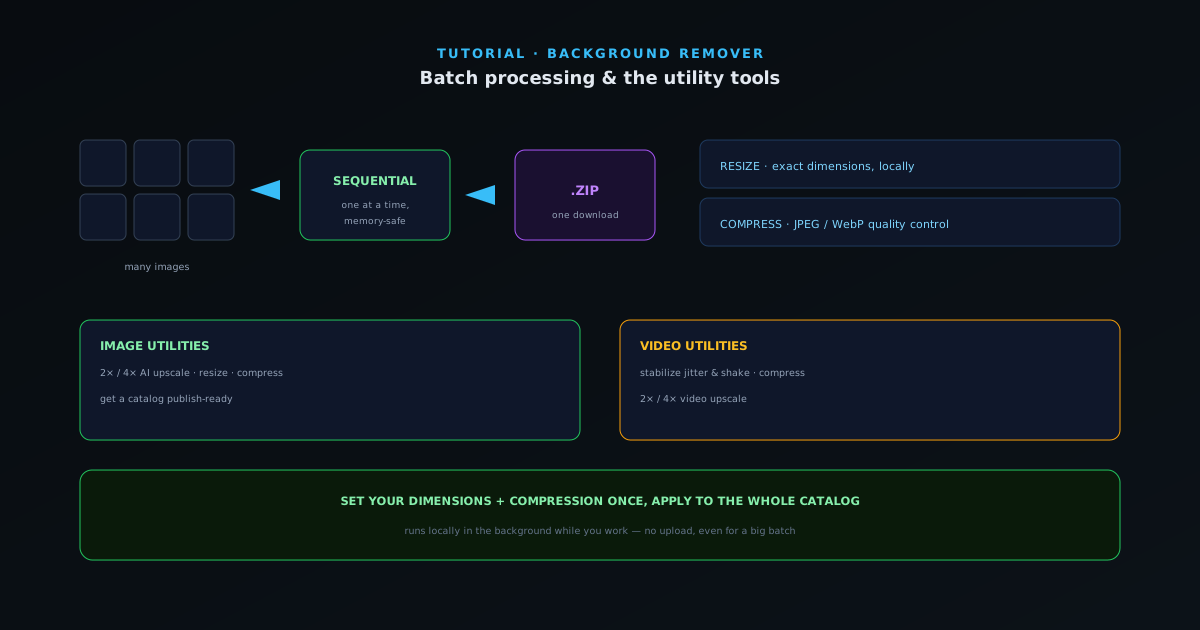
Removing a background is usually just one step; the utility tools handle the rest of getting an image or a clip ready to publish. This guide walks the local helpers — resizing, compressing, converting, upscaling, and stabilizing — all of which run in your browser with no server in the loop.
Contents
- 1
1. Resize and compress for the web
The image resizer scales to exact dimensions locally, and the compressor reduces file size with JPEG and WebP quality control — the two steps that get an image ready for a storefront or listing without blowing up page weight. Doing it locally means no upload round-trip.
- Resize to exact dimensions.
- Compress with JPEG/WebP quality control.
- 2
2. Convert and optimize formats
Use the format converter to move between PNG, WebP, AVIF, and JPG for whatever a destination expects, and the PNG optimizer to shrink a transparent PNG without quality loss. Matching the format to the job keeps files small and compatible.
- Convert between PNG, WebP, AVIF, and JPG.
- PNG optimizer shrinks transparent files losslessly.
- 3
3. Upscale when you need more resolution
If a source image is too small, the image upscaler adds resolution with 2× or 4× AI super-resolution before you publish. For video, the same 2×/4× upscaling is available, alongside a video compressor to bring file size down.
- 2× / 4× image and video upscaling.
- Video compressor to reduce file size.
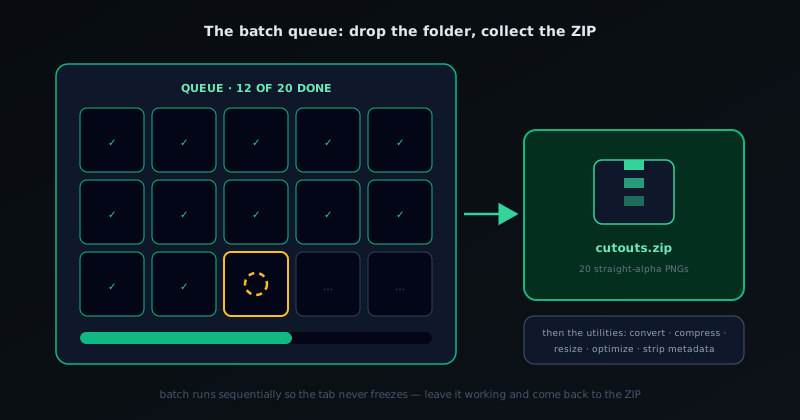
The utility tools finish an asset — resize, compress, convert, and upscale, one clean pass each. - 4
4. Stabilize video and finish
The video stabilizer removes jitter and shake from a clip — useful for handheld product footage before it goes onto a page. Combined with the editors and the compressors, the whole prep pipeline for images and short clips can happen in one place, entirely on your device.
Set your defaults once
Decide your export dimensions and compression target before you start so every image comes out consistent — mismatched sizes are the most common thing that makes a product grid look untidy. Because every utility runs locally, you can chain resize → convert → compress on each asset without a single upload.
Frequently asked questions
Quick answers to common questions about this topic.
What utility tools does the Background Remover include?
For images: resize, compress, format-convert, PNG-optimize, and 2×/4× upscale. For video: resize, compress, convert, stabilize, and 2×/4× upscale. Every one runs free and on-device.
Do the utility tools upload my files?
No. Like the rest of the app, every utility runs in your browser, so your images and clips never leave your device.